
Adobe Acrobat Example
When filling out a form in Adobe Acrobat, PDF printing allows you to finalize your form document so that it may no longer be edited. This is particularly important when creating documents that will be archived or otherwise apart of a permanent record.
The following is an example of how to PDF print a Hotel Services Group New Hire Form to submit during your employee's new hire process.
✅ Compete the Form
It's important that your PDF form is complete. The PDF printed copy will be a final version of the form that can no longer be edited or updated. Make sure you don't need to change anything on the form before printing. If a change is needed you may have to recreate the document before printing again to make an updated copy.
🖨️ Open the Print Dialog Window
In Adobe Acrobat there are several ways to open the print dialog window. Complete one of the following to open the print dialog:
- CTRL + P (While holding down the CTRL key press the P key)
- Select Menu located at the top left of the application window then select Print
- Select the Printer icon in the top right of the application window
⚙️ Setup for PDF Printing
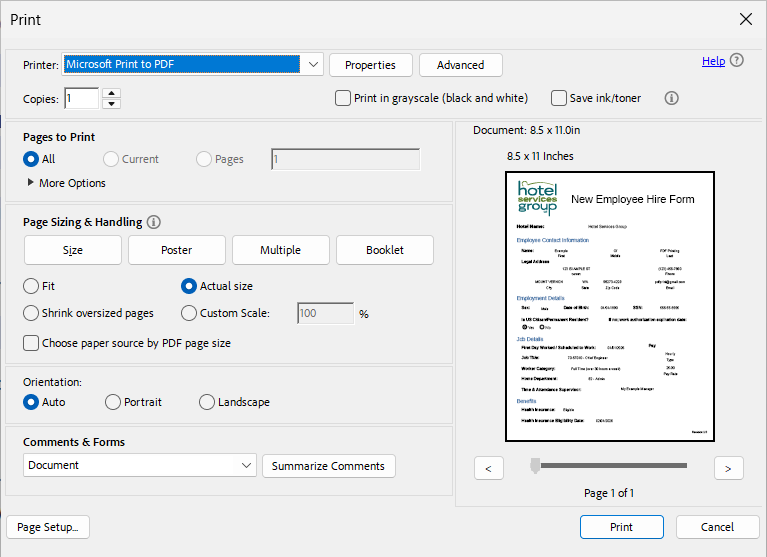
In the Print dialog window review and select the following settings:
- In the Printer drop-down menu select the Microsoft Print to PDF printer
- The Print in grayscale (black and white) checkbox should typically be unchecked unless removing color from the document is desired
- The Save ink/toner checkbox should be unchecked
- Under Page Sizing & Handling the Actual size radio button should be selected
- Under Orientation the Auto radio button should be selected
Example
📄 Print the Document
From the print dialog window select the Print button. The Save Print Output As window will open. Select the folder where you would like to save your finalized document. Type in a file name before selecting the Save button.
No comments to display
No comments to display